
I see DrPython as an interesting part of Python’s educational software history. It was designed to make writing and running Python programs easier, especially for learners who needed something more focused than a large professional development environment. Its clean interface, integrated tools, customization options, and educational purpose helped it stand out during an earlier period of Python development.
The situation is different today. DrPython is still available from its official project archive, but the latest published release is old. Modern Python versions, operating systems, graphical toolkits, package-management practices, debugging workflows, and security expectations have changed considerably since its last update.
That does not make DrPython meaningless. It remains useful for understanding how lightweight Python environments developed, studying older educational workflows, opening legacy project files, or experimenting inside a controlled historical environment. However, I would not recommend it as the default editor for someone beginning Python today without first explaining its compatibility and maintenance limitations.
In my analysis, most people searching for DrPython want an answer to one of five questions. They want to know what it is, whether it is still available, how it was installed, whether it works with modern Python, or which editor they should use instead. This guide answers each question while distinguishing verified historical information from present-day recommendations.
Key Takeaways
- DrPython is a free, open-source editor designed specifically for writing and running Python programs.
- It was built in Python using the wxPython toolkit and the Scintilla text-editing component.
- Its original design emphasized simplicity, customization, stability, and education.
- DrPython supported plugins, scripts, configurable shortcuts, toolbar commands, and numerous preferences.
- The official project archive lists DrPython 3.11.4 as the latest release.
- SourceForge records April 20, 2014 as the project’s last update.
- The DrPython version number should not be confused with the version of the Python programming language.
- Current compatibility with modern Python and wxPython releases should be treated as unverified.
- The safest way to explore DrPython is in a disposable virtual machine or isolated legacy environment.
- DrPython may still be relevant for historical research, legacy systems, and educational software preservation.
- IDLE and Thonny are generally stronger choices for present-day beginners.
- Visual Studio Code and PyCharm are more suitable for larger projects and professional workflows.
- Users should download DrPython only from the official project website or SourceForge archive.
- Existing DrPython projects usually contain ordinary Python files that can be opened in another editor.
- A migration normally involves moving the source files, selecting a supported Python interpreter, and rebuilding the project environment.
What Is DrPython?
DrPython is a customizable text editor and lightweight development environment created for Python programming. Its official website describes it as an editor intended to help users write Python programs quickly and easily.
The program itself was written in Python. Its graphical interface used wxPython, which provides Python bindings for the wxWidgets graphical user interface toolkit. DrPython also used the Scintilla editing component internally. Scintilla has historically provided code-editing features such as syntax styling, line handling, selection behavior, and other functions used by programming editors.
The project was intended to work across multiple desktop operating systems. SourceForge lists BSD, Linux, Mac, and Windows among its supported platforms. Those listings describe the project’s intended historical reach, not a guarantee that the archived release will operate correctly on every current system.
DrPython was more than a plain text box. It combined code editing, program execution, customization, educational simplicity, and extensibility. Users could write a script, run it, review its output, change editor preferences, and extend parts of the application.
The official homepage summarizes the product in a useful sentence:
“DrPython is a highly customizable text editor geared towards writing programs in Python quickly and easily.”
DrPython official website
This description explains the project’s original appeal. It was intended to reduce the distance between writing a line of Python and seeing the result.
Why DrPython Was Created
The creator developed DrPython while teaching programming. According to the project’s official history, the goal was to provide students with an environment where they could write a program, click a button, and watch it run.
That educational motivation influenced the interface. Instead of making new programmers configure a complicated professional toolchain, DrPython attempted to keep the main workflow visible and direct.
The project was also inspired by DrScheme, an educational programming environment associated with teaching Scheme. The creator wanted something with a similarly approachable workflow for Python.
The origin is expressed clearly in the project history:
“What I wanted was DrScheme, only for Python. Thus DrPython was born.”
DrPython project author
I believe this background is essential because it explains why DrPython should not be judged only by modern professional IDE standards. It was designed to solve a teaching problem. Its main objective was not to provide cloud development, artificial intelligence assistance, container integration, advanced refactoring, or large-scale project analysis.
The published design goals were simplicity, ease of use, customization, and stability. Those goals remain understandable today, even though newer tools now address them with maintained software and stronger Python 3 support.
DrPython Version 3.11.4 Is Not Python 3.11
One of the most important points for new readers is the meaning of the DrPython version number. The latest archived release is named DrPython 3.11.4. That name can easily be mistaken for a statement that the software supports Python 3.11.4.
It does not establish that connection.
DrPython’s application version followed its own numbering system. Releases such as 3.10.13, 3.11.1, 3.11.2, and 3.11.4 appeared years before the corresponding modern Python interpreter versions.
For example, SourceForge shows several DrPython 3.x releases dating from the mid-2000s. The final 3.11.4 archive was published in 2014. The matching digits are therefore coincidental from the perspective of modern Python release numbers.
This distinction matters when evaluating compatibility. A user may see “3.11.4” and assume the editor was designed for Python 3.11. That assumption can lead to installation failures, incompatible dependencies, or confusion about syntax support.
In my view, every current DrPython guide should make this warning prominent. Software names and interpreter versions must be evaluated separately.
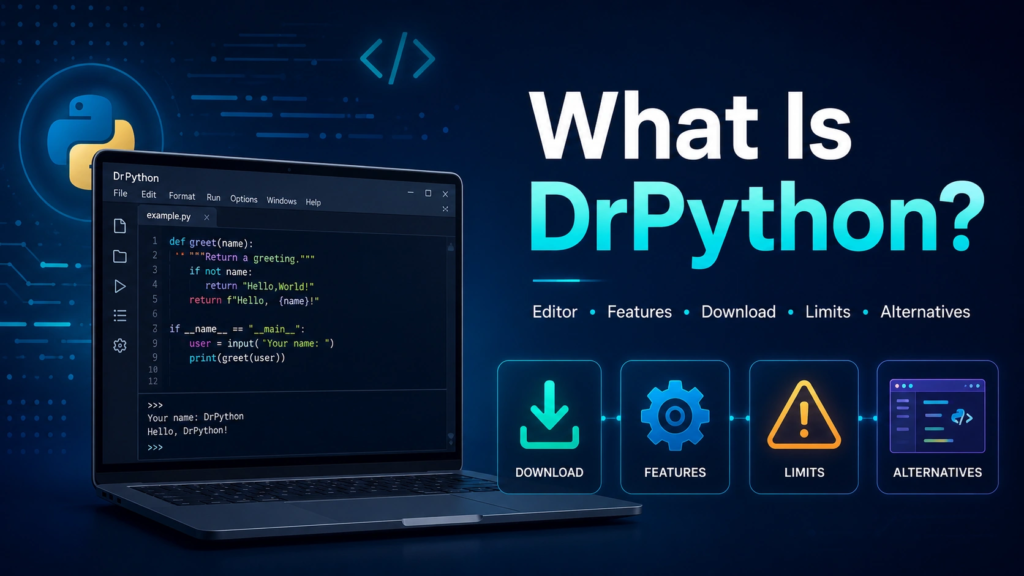
Main DrPython Features
DrPython provided a focused set of features for writing and managing Python code. Some functions were included directly, while others could be added or modified through customization and plugins.
Python Code Editing
The central component was a code editor intended for Python source files. Its Scintilla-based editing area supported programming-oriented text handling rather than functioning like an ordinary document editor.
Syntax highlighting made code structure easier to recognize by visually distinguishing elements such as keywords, comments, strings, and other tokens. Automatic indentation and configurable editing behavior could also reduce routine formatting work.
These features may appear basic beside a modern IDE, but they were valuable in a lightweight educational tool. A learner could focus on Python syntax without confronting a large number of unrelated panels.
Running Python Programs
DrPython was designed to let users write a program and run it from the application. This direct edit-and-run workflow was one of the original educational goals.
Consider a simple example:
name = input("What is your name? ")
print(f"Hello, {name}!")
In a suitable environment, the learner would save the file, use the run command, enter a name, and view the result. That quick feedback loop can make early programming exercises feel more understandable.
The historical DrPython workflow should not be confused with a modern managed project environment. Current tools may automatically detect interpreters, create virtual environments, install packages, run tests, and manage debugging configurations. DrPython came from a simpler period of Python tooling.
Integrated Prompt or Interpreter Access
DrPython included tools for interacting with Python while working in the editor. An interactive prompt is helpful because it allows users to test expressions without creating a complete program.
For example, a learner might enter:
>>> 12 * 8
96
The prompt can then be used to explore strings, lists, functions, and other concepts. This combination of a script editor and interactive interpreter is still common in educational Python tools.
Search and Replace
Search functions help users find text, variable names, functions, comments, or repeated patterns. Search and replace can update multiple occurrences more efficiently than editing them one at a time.
A broader search-in-files function was also associated with the DrPython environment. The project author noted that some components could become optional as the plugin system developed.
Modern tools offer more advanced symbol-based navigation and project-wide refactoring, but a reliable text search remains useful for small scripts.
Bookmarks can mark important lines so a programmer can return to them quickly. This feature is especially helpful in a long file with several functions or classes.
A learner working on a text adventure, for example, might place bookmarks at the inventory function, the movement logic, and the main game loop. Moving between those sections becomes faster than scrolling repeatedly.
Customizable Preferences
Customization was one of DrPython’s main design goals. Users could change numerous preferences related to the interface and editing experience.
Possible customization areas historically included fonts, colors, indentation, shortcuts, toolbar behavior, editor display settings, and other workflow details.
I think this was one of the project’s strongest ideas. A beginner could use a simple configuration, while a more experienced user could adjust the editor without moving to a much larger IDE.
Shortcuts and Toolbar Commands
The project allowed commands to be connected with keyboard shortcuts, popup menus, and toolbar controls. This meant frequently used actions could be placed where the user found them most convenient.
A teacher could theoretically configure a classroom installation with prominent controls for opening, saving, and running scripts. A more experienced programmer might prioritize search commands, indentation tools, or scripts.
Built-In Scripting
DrPython included scripting capabilities that allowed the editor itself to be extended or automated with Python.
This design is especially appropriate for a Python-focused tool. Users who learned more of the language could apply it to their own development environment.
A simple conceptual use might involve writing a script that inserts a standard file header, formats selected text, or creates a repeated code structure. The available scripting interface would determine the exact implementation.
Plugin Support
The 3.x branch supported plugins, allowing additional functionality to be added without placing everything in the core application.
Plugins can keep an editor lightweight because users install only the capabilities they need. They can also encourage community contributions.
The limitation is maintenance. A plugin system is only useful when compatible plugins remain available and the host application continues to support current dependencies. DrPython’s archived status makes old plugin compatibility uncertain.
DrPython Features Compared With Current Expectations
The following table helps separate the editor’s historical strengths from features commonly expected in a current Python development environment.
| Capability | DrPython’s historical approach | Common modern expectation | Present-day assessment |
|---|---|---|---|
| Code editing | Scintilla-based Python editor | Advanced completion, diagnostics, formatting, and type information | Suitable for basic historical editing |
| Program execution | Run scripts from the editor | Configurable interpreters, terminals, tasks, and launch profiles | Simple but potentially difficult to configure now |
| Interactive work | Integrated prompt or shell-style workflow | REPL, notebooks, variable viewers, and data tools | Useful in concept but limited |
| Customization | Preferences, shortcuts, toolbar commands, and scripts | Settings synchronization, profiles, extensions, and workspace settings | Historically strong |
| Plugins | Python-based extensibility | Large maintained extension marketplaces | Archived ecosystem is a major limitation |
| Debugging | Lightweight educational workflow | Breakpoints, watches, call stacks, remote debugging, and test debugging | Below current professional expectations |
| Environment management | External Python and wxPython installation | Virtual environments, interpreter discovery, package managers | Significant modern limitation |
| Version control | Not a central integrated feature | Built-in Git status, diffs, commits, and branches | External tools likely required |
| Maintenance | Final archive update in 2014 | Frequent security and compatibility updates | Main reason not to adopt it today |
| Learning value | Clean, focused interface | Guided debugging, error explanations, and maintained documentation | Better served by newer beginner tools |
The most important difference is not the number of features. It is maintenance. A small editor can still be excellent when it receives compatibility fixes, security updates, documentation improvements, and testing against current Python releases. DrPython no longer has that active development cycle.
Is DrPython Still Maintained?
The available project records indicate that DrPython is not actively maintained as a modern Python editor. SourceForge lists April 20, 2014 as the last update and identifies DrPython 3.11.4 as the latest downloadable release.
A project can remain downloadable after active development stops. Its homepage, files, reviews, tickets, and documentation may continue to exist for archival purposes.
I would describe DrPython as legacy software rather than automatically calling it unusable. “Legacy” means the software belongs to an older technical environment and may still have historical or specialized value.
However, the absence of recent releases creates practical risks:
- Compatibility with current Python versions is uncertain.
- Compatibility with current wxPython releases is uncertain.
- Installation instructions may reference outdated operating-system behavior.
- Older plugins may no longer be available.
- Documentation may not reflect current packaging practices.
- Bugs affecting modern systems may never be fixed.
- Security problems in dependencies may remain unresolved.
- Community support may be limited.
- Modern high-resolution displays may expose interface issues.
- Current macOS and Windows security controls may block or warn about old software.
These risks do not prove that every installation will fail. They mean the burden of verification moves to the user.
Can DrPython Run on Modern Python?
There is no reliable basis for promising that the archived DrPython release will run correctly with a current Python interpreter and a current wxPython package.
The official installation guidance says users need Python and wxPython, after which they can extract the archive and run drpython.pyw. That instruction reflects the project’s original environment.
A current installation may fail for several reasons:
- The source may contain syntax intended for an older Python generation.
- wxPython APIs may have changed.
- Module names may have moved.
- Operating-system security rules may block the launcher.
- Text encoding behavior may differ.
- Bundled resources may rely on old file paths.
- Plugins may depend on removed interfaces.
- The default Python command may point to an incompatible interpreter.
I would therefore avoid publishing a universal claim such as “DrPython works on Python 3” or “DrPython does not work on Python 3.” Compatibility can depend on the exact interpreter, wxPython build, platform, patches, and launch method.
The responsible statement is that modern compatibility is unverified and likely to require troubleshooting or modification.
How to Download DrPython Safely
DrPython should be obtained from its official website or SourceForge project archive. Third-party download pages may provide old installers, modified packages, aggressive advertising, or unclear file histories.
The archived file listed by SourceForge is named DrPython_3.11.4.zip. The project page identifies it as the latest available release.
Before opening legacy software, I recommend taking several precautions:
- Confirm that the page belongs to the official DrPython SourceForge project.
- Avoid unrelated download buttons placed in advertisements.
- Save the archive without immediately executing files.
- Scan the archive with current security software.
- Inspect its contents before running anything.
- Use a disposable virtual machine when possible.
- Avoid granting administrator privileges.
- Do not use the environment for sensitive source code.
- Keep the test machine separated from important accounts and files.
- Create a snapshot before installation.
These steps are not accusations against DrPython. They are normal precautions for software that has not received updates for many years.
How DrPython Was Installed
The official instructions describe a simple historical procedure:
- Install Python.
- Install wxPython.
- Download and extract DrPython.
- Run
drpython.pyw.
That process may have worked smoothly with the expected software versions of the period. A present-day installation requires more planning.
Step 1: Decide Why You Need DrPython
Start by identifying the purpose. A historical demonstration, recovery of an old classroom setup, or investigation of an archived project may justify the effort.
Someone who simply wants to learn Python should normally choose a maintained editor instead.
Step 2: Use an Isolated Environment
A virtual machine is safer than modifying a primary computer. It allows older dependencies to be installed without interfering with modern development tools.
A virtual machine also provides snapshots. When an installation breaks the environment, the user can return to an earlier state.
Step 3: Research the Required Python Generation
The latest archive date and source files can help determine which interpreter generation the software expected. Do not assume that the DrPython version number identifies this requirement.
When no clear compatibility statement is available, test cautiously with historically appropriate dependencies.
Step 4: Install a Compatible wxPython Build
wxPython is required for the graphical interface. The current wxPython package may differ significantly from the APIs expected by DrPython.
An older wxPython build may be difficult to install on a modern operating system. That challenge is one reason a period-appropriate virtual machine can be useful.
Step 5: Extract the Archive
Extract the ZIP file into a dedicated directory. Avoid placing it in a protected system folder that requires elevated permissions.
Review the included files, documentation, licenses, and launch scripts before proceeding.
Step 6: Launch the Main Script
The official instructions identify drpython.pyw as the launcher. On some systems, a .pyw file starts without displaying a separate console window.
When double-clicking does not work, a command-line launch may reveal an error message. That message can identify a missing module, syntax problem, path issue, or wxPython incompatibility.
Step 7: Test With a Basic Script
Create a small file:
print("DrPython test")Save it in a temporary directory and run it. Confirm that the correct interpreter is used and that output appears as expected.
Do not begin with an important project. A minimal script separates editor problems from project dependencies.
Step 8: Test File Encoding and Saving
Create a file containing non-ASCII characters, save it, close it, and reopen it. This can expose encoding problems before real work begins.
Step 9: Avoid Unnecessary Plugins
Old plugins can introduce additional incompatibilities. Begin with the core editor and add nothing until basic editing and execution work reliably.
Step 10: Document the Working Environment
Record the operating system, Python version, wxPython version, DrPython version, launch command, and any patches.
This documentation becomes essential when the environment must be reproduced later.
Common DrPython Installation Problems
Nothing Happens When the Launcher Opens
A graphical .pyw launcher may hide console errors. Try starting the program from a terminal using the intended Python executable.
The resulting traceback may reveal the missing dependency or incompatible code.
wxPython Cannot Be Imported
This error means the selected interpreter cannot locate a compatible wxPython installation.
Confirm that wxPython was installed into the same environment used to launch DrPython. Multiple Python installations often cause this mismatch.
SyntaxError Appears During Startup
A syntax error in DrPython’s own files may indicate that the source was written for a different Python generation.
Changing one line may reveal more incompatibilities. A full port can require systematic code changes rather than a quick correction.
The Window Opens but Controls Are Broken
Graphical toolkit changes can affect menus, dialogs, icons, event handling, fonts, or layout.
A partially working interface should not be considered stable. Test saving, opening, running, preferences, and closing before trusting the environment.
Python Scripts Run With the Wrong Interpreter
DrPython may call a default Python command or use a configured path. Check its preferences and launch environment.
A script using modern syntax will fail when an older interpreter is selected, while an old project may fail under a current interpreter.
Plugins Fail to Load
Plugins may depend on an earlier DrPython API, Python syntax, wxPython version, or external module.
Disable plugins and confirm that the core application works first.
Advantages and Limitations of DrPython
DrPython had genuine strengths in its original context. Its clean purpose, Python-based extensibility, educational origin, and customization made it attractive to learners and teachers.
Its current limitations come primarily from age rather than from a flawed original concept.
Advantages
- Free and open-source licensing
- Focused Python interface
- Educational design
- Cross-platform intention
- Integrated editing and execution
- Customizable preferences
- Configurable shortcuts and toolbar commands
- Built-in scripting
- Plugin architecture
- Small archived download
- Historical value
- Potential usefulness for legacy classroom environments
Limitations
- No active modern development
- Last project update recorded in 2014
- Uncertain compatibility with current Python
- Uncertain compatibility with current wxPython
- Limited present-day support
- Old documentation
- Archived plugin ecosystem
- No modern extension marketplace
- Weak fit for collaborative workflows
- Limited integration with current testing tools
- Limited virtual-environment management
- No dependable current security maintenance
- Possible problems on modern displays and operating systems
From my perspective, these limitations make DrPython unsuitable as a default recommendation for ordinary current development.
DrPython Compared With Modern Python Editors
Several maintained tools now cover the use cases that once made DrPython attractive.
| Editor or IDE | Best suited to | Major strengths | Main trade-off |
| DrPython | Legacy systems, historical research, software preservation | Simple design, customization, educational history | Archived and unverified on modern systems |
| IDLE | Basic Python learning and quick scripts | Generally bundled with Python, editor and shell, official documentation | Limited project tooling |
| Thonny | Beginners, classrooms, and programming education | Simple debugger, variable views, beginner-focused interface | Less suitable for large professional projects |
| Visual Studio Code | General development and multi-language projects | Python extension, debugging, testing, Git, environments, broad ecosystem | Requires setup and extension choices |
| PyCharm | Dedicated Python development | Refactoring, debugging, testing, project tools, code analysis | Heavier interface and resource use |
| Terminal plus text editor | Minimal or remote environments | Flexible, fast, scriptable | Higher learning curve for beginners |
| JupyterLab | Data analysis and exploratory computing | Interactive notebooks, visual output, data workflow | Not ideal for every application structure |
The strongest replacement depends on the intended user. I would choose Thonny for a beginner who values simplicity, IDLE for a minimal official setup, VS Code for flexible general development, and PyCharm for a dedicated full Python IDE.
Why IDLE Is a Practical Replacement
IDLE is Python’s Integrated Development and Learning Environment. Official Python documentation states that it is generally bundled with Python installations.
Its main components include an editor and an interactive shell. It also supports syntax highlighting, automatic indentation, search, completion, call tips, and debugging tools.
The official documentation explains its role directly:
“IDLE is Python’s Integrated Development and Learning Environment and is generally bundled with Python installs.”
Python documentation
IDLE is not identical to DrPython, but it serves a similar basic purpose. It lets a learner edit Python code, run scripts, and interact with the interpreter without installing a large third-party IDE.
I would consider IDLE when the priority is minimal setup and official Python integration.
Why Thonny Is Better for Many Beginners
Thonny is specifically presented as a Python IDE for beginners. It offers a simple debugger that can step through program execution in a way intended to make code behavior visible.
This is valuable for teaching. A learner can watch expressions, variables, and function calls change instead of treating execution as a hidden process.
Thonny also provides a more current educational environment than DrPython. It addresses the same general desire for simplicity while fitting modern Python workflows more effectively.
A hypothetical beginner learning loops could run:
total = 0

for number in range(1, 6):
    total += number

print(total)
A step-based debugger can show how number and total change during each iteration. That visual explanation may teach more than simply displaying the final answer.
Why Visual Studio Code Fits Growing Projects
Visual Studio Code becomes a Python environment through the official Python extension and related tooling. Microsoft’s documentation covers running scripts, selecting interpreters, working with virtual environments, debugging, and configuring tests.
It is a practical choice for users who work with Python alongside HTML, CSS, JavaScript, configuration files, databases, or cloud tools.
The trade-off is complexity. A beginner must understand that the editor, Python interpreter, and Python extension are separate components.
I would recommend VS Code when a learner is ready to move beyond isolated scripts into projects, version control, testing, and multiple technologies.
Why PyCharm Fits Dedicated Python Development
PyCharm is a full Python IDE with integrated tools for navigation, refactoring, debugging, testing, environments, terminals, and project management.
Its interface can initially feel heavier than DrPython, IDLE, or Thonny. However, the additional structure becomes useful in larger applications.
A developer renaming a function across a project, inspecting call relationships, running a test suite, or debugging a web application benefits from tools that understand code structure rather than treating everything as plain text.
PyCharm is a stronger option when Python is the main development language and the project requires professional tooling.
Who Might Still Use DrPython?
DrPython can still have a valid purpose in several situations.
Software Historians
Researchers studying the development of Python education tools may examine DrPython’s interface, source code, plugin model, and relationship with earlier teaching environments.
Teachers Maintaining an Old Course Image
A school may have archived virtual machines, course materials, screenshots, or exercises built around DrPython. Preserving the original environment can help recover those materials.
Migration should still be planned because long-term dependence on unsupported software creates risk.
Legacy-System Maintainers
An organization may have an old internal workflow that launches scripts through DrPython. Reproducing the original environment can help diagnose or migrate the system.
The goal should normally be understanding and transition, not indefinite expansion of the legacy setup.
Open-Source Learners
The DrPython source may provide an example of a Python desktop application built with wxPython and Scintilla.
Readers should remember that older source code may demonstrate historical practices rather than current recommendations.
Digital Preservation Projects
Libraries, archives, and museums may preserve the software as part of educational computing history.
For preservation, the operating system and dependencies are as important as the application archive.
Who Should Avoid DrPython?
Most new Python learners should avoid making DrPython their primary editor. The installation effort can distract from learning the language.
Professional teams should avoid introducing it into new projects because unsupported tooling creates maintenance, onboarding, security, and compatibility problems.
Users handling confidential code should not rely on an unmaintained environment without a thorough review and controlled setup.
Schools designing a new curriculum should choose a maintained educational tool with current documentation and support.
Anyone who needs modern package management, Git integration, notebooks, test discovery, remote development, containers, or current debugging features will be better served elsewhere.
How to Move a DrPython Project to a Modern Editor
A DrPython project will often consist mainly of ordinary .py source files. Those files can usually be opened in another editor, but the execution environment may require reconstruction.
Step 1: Back Up the Entire Project
Copy the source files, data files, images, configuration files, documentation, and any custom DrPython scripts or plugins.
Keep the original directory unchanged as a reference.
Step 2: Identify the Original Python Version
Look for syntax clues, documentation, launch scripts, package files, or archived environment notes.
Examples of older syntax can help identify a project that requires conversion before it runs under a modern interpreter.
Step 3: List External Dependencies
Search imports and review any package documentation. Separate standard-library modules from third-party packages.
An old dependency may have been renamed, replaced, or abandoned.
Step 4: Create a New Isolated Environment
Use a supported Python version and create a virtual environment for the project.
Install dependencies gradually rather than copying a system-wide package directory.
Step 5: Open the Folder in the New Editor
Choose IDLE for a simple file, Thonny for learning, VS Code for flexible projects, or PyCharm for a structured Python application.
Opening the entire folder preserves relative paths and makes project-wide search easier.
Step 6: Run the Smallest Entry Point
Start with one script or test. Record each error and fix problems systematically.
Do not make many unrelated code changes before confirming the baseline behavior.
Step 7: Add Tests
Where possible, write tests that capture existing behavior before modernizing the code.
A migration without tests can accidentally change calculations, data formats, or error handling.
Step 8: Replace DrPython-Specific Automation
Custom editor scripts, shortcuts, or plugins may need alternatives.
A text transformation might become a standalone Python script. A run command might become a VS Code task, PyCharm configuration, shell script, or package entry point.
Step 9: Add Version Control
Create a Git repository after protecting the original files and before making major changes.
Frequent commits make it easier to compare, review, and reverse migration work.
Step 10: Document the New Workflow
Record interpreter setup, dependency installation, launch commands, tests, and editor recommendations.
The project should no longer depend on one person remembering an old DrPython configuration.
Common Misconceptions About DrPython
DrPython 3.11.4 Supports Python 3.11.4
The matching version numbers do not establish compatibility. DrPython used its own release numbering and published version 3.11.4 in 2014.
DrPython Is the Same as IDLE
Both can edit and run Python, but they are separate projects with different interfaces, histories, and implementation choices.
DrPython Is Still Actively Updated
The official project archive lists 2014 as the last update. Continued download availability does not mean active maintenance.
Every Old Python File Will Run in a Modern IDE
An editor can open the file, but the interpreter may reject old syntax or missing dependencies. Migration can require code changes.
A Successful Launch Proves Full Compatibility
An application may open while saving, execution, plugins, encoding, or preferences remain broken. Every important function should be tested.
Open Source Automatically Means Secure
Open source allows inspection and modification, but security also depends on active maintenance, dependency updates, review, and responsible deployment.
DrPython-WEB Is the Same Application
DrPython-WEB is a separate name used for a web-based educational code-analysis project. It should not automatically be treated as a continuation of the desktop DrPython editor.
Practical Recommendations
I would approach DrPython according to the user’s goal.
For historical research, download the official archive, preserve it unchanged, and create a controlled environment that reflects the original dependencies.
For legacy recovery, reproduce the old setup only long enough to understand the project and move its source code to maintained tools.
For a new learner, choose Thonny or IDLE. Both provide a simpler path to current Python without depending on a decade-old editor.
For a growing developer, choose Visual Studio Code or PyCharm and learn virtual environments, testing, source control, and interpreter management early.
For a school, standardize a maintained tool, document the installation, test it on all classroom devices, and plan how students will move their projects between home and school.
The main lesson is not that older software has no value. It is that historical value and operational suitability are different questions.
Conclusion
DrPython was created with a clear and worthwhile purpose: make Python programming easier for students and users who wanted a simple, customizable environment. Its Python-based design, wxPython interface, integrated execution workflow, scripting, preferences, and plugins made it a meaningful educational editor in its time.
I believe its current value is mainly historical, educational, and connected with legacy recovery. SourceForge lists DrPython 3.11.4 as the final release and records the last project update in 2014. That long maintenance gap means modern compatibility, security, dependency support, and plugin reliability should not be assumed.
Someone who needs to inspect DrPython should use the official archive and work inside an isolated environment. Someone who needs to learn or develop Python today should normally select IDLE, Thonny, Visual Studio Code, or PyCharm according to the complexity of the work.
The most practical next step is to identify the real goal. Preserve DrPython when studying an old environment, migrate existing source files when maintaining a legacy project, and choose a supported editor when starting something new.
Frequently Asked Questions
What Is DrPython?
DrPython is a free, open-source text editor and lightweight development environment created for Python programming. It was written in Python using wxPython and the Scintilla editing component. The project emphasized simplicity, customization, stability, and education. Users could edit and run scripts, change preferences, configure commands, use built-in scripting, and add plugins.
Is DrPython Still Available?
Yes, DrPython remains available through its official website and SourceForge archive. The latest listed file is DrPython 3.11.4, published on April 20, 2014. Availability should not be confused with active maintenance. Anyone downloading it today should treat it as legacy software and use an isolated environment.
Is DrPython Still Maintained?
DrPython does not appear to be actively maintained. SourceForge lists April 20, 2014 as the project’s last update. No current release cycle is shown on the official archive. This means compatibility problems, dependency changes, and security concerns may not receive fixes.
Does DrPython 3.11.4 Work With Python 3.11?
The DrPython 3.11.4 version number does not mean it supports Python 3.11. DrPython used its own application numbering, and version 3.11.4 was released years before Python 3.11. Compatibility with any specific modern interpreter should be tested rather than assumed.
How Do I Install DrPython?
The historical official instructions say to install Python and wxPython, extract the DrPython archive, and run drpython.pyw. Modern installation may require older dependencies or source changes. I recommend testing it inside a disposable virtual machine instead of installing it directly on an important computer.
Is DrPython Safe to Download?
The safest source is the official DrPython SourceForge project. Legacy software should still be scanned, inspected, and tested in isolation because it has not received recent updates. Avoid unofficial installers and third-party download buttons that do not clearly identify the original archive.
What Is the Best DrPython Alternative?
Thonny is often the best alternative for beginners because it focuses on teaching and provides a simple debugger. IDLE is useful for a minimal environment generally bundled with Python. Visual Studio Code suits flexible projects, while PyCharm provides a full dedicated Python IDE.
Can I Open DrPython Files in Another Editor?
Yes, most DrPython projects use ordinary Python source files with the .py extension. These files can be opened in IDLE, Thonny, Visual Studio Code, PyCharm, or another text editor. The code may still require changes when it depends on old Python syntax or abandoned packages.
Was DrPython Designed for Schools?
Education was an important part of DrPython’s origin. The creator developed it while teaching programming and wanted students to write a program, click a button, and see it run. SourceForge also lists education among the project categories and audiences.
Is DrPython an IDE or a Text Editor?
DrPython can reasonably be described as both a Python-focused text editor and a lightweight development environment. It included more than plain editing because users could run programs, access Python tools, customize commands, use scripts, and install plugins. It did not provide the full range of features expected from a modern professional IDE.
Sources and References
- DrPython official website, project description.
- DrPython official About page, project history and design goals.
- DrPython official Help page, historical installation instructions.
- SourceForge DrPython project page, licensing, supported platforms, project categories, and last-update record.
- SourceForge DrPython file archive, release history and DrPython 3.11.4 download record.
- Python documentation, Editors and IDEs.
- Python documentation, IDLE editor and shell.
- Thonny official website, beginner-focused Python IDE features.
- Microsoft Visual Studio Code documentation, Python setup, debugging, testing, and environments.
- JetBrains PyCharm official documentation, Python development and integrated tools.
- Sources reviewed June 17, 2026.
Disclaimer
This article provides general educational and historical information. It does not guarantee that DrPython will run on a particular operating system, Python interpreter, or wxPython version. Legacy software may contain unresolved bugs, incompatible dependencies, or security risks. Download files only from trusted sources, scan them with current security tools, and use an isolated environment for testing. DrPython, Python, wxPython, Scintilla, IDLE, Thonny, Visual Studio Code, and PyCharm are trademarks or project names belonging to their respective owners. The author and publisher are not affiliated with these projects or companies.