
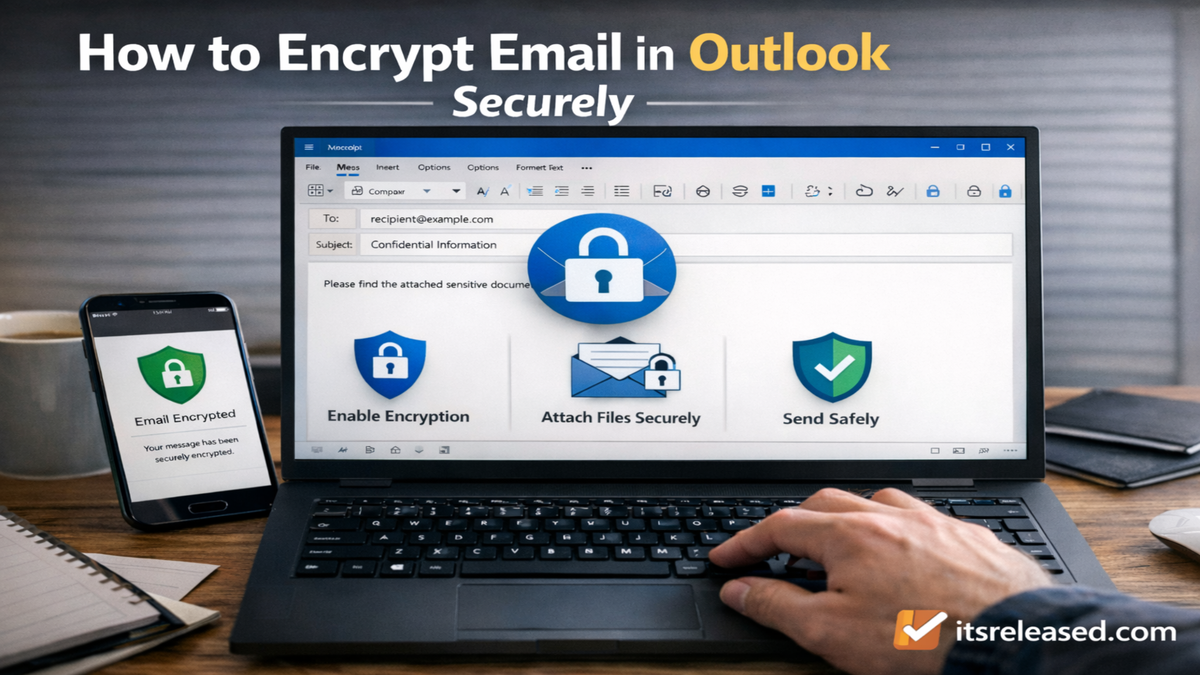
Email remains one of the most widely used communication tools in both professional and personal environments, yet it is also one of the most vulnerable channels when it comes to data exposure. Sensitive attachments, financial details, contracts, login credentials, and confidential conversations often travel through inboxes every day. Without proper protection, these messages can be intercepted, misdirected, or accessed by unauthorized parties. Learning how to encrypt email in Outlook is therefore not just a technical skill but an essential step toward safeguarding digital communication.
Encryption transforms readable content into coded text that can only be deciphered by authorized recipients. When applied correctly, it ensures that even if an email is intercepted, the contents remain unreadable to anyone without the correct key or credentials. Microsoft Outlook provides several built-in encryption options, ranging from simple message encryption to more advanced certificate-based security methods. Understanding these methods, how they work, and when to use them empowers individuals and organizations to communicate securely without unnecessary complexity.
In this comprehensive guide, you will learn what email encryption means, how Outlook supports encryption, step-by-step instructions for enabling and using encryption across different versions, comparisons of encryption methods, troubleshooting advice, and best practices for maintaining secure communication. By the end, you will be fully equipped to encrypt emails confidently and correctly.
Understanding Email Encryption and Why It Matters

Email encryption is the process of converting the content of an email message into an unreadable format using cryptographic techniques. Only recipients who possess the appropriate key or authorization can decrypt and read the original message. This process protects both the message body and, in many cases, attachments.
To understand why encryption is important, consider how email typically travels. When you send a message, it passes through multiple servers before reaching the recipient. If encryption is not applied, the message may be accessible in readable form at various points along its journey. Encryption ensures that even if someone gains access to the transmission path, they cannot interpret the contents.
There are two primary types of encryption used in email systems:
| Encryption Type | How It Works | Typical Use Case |
|---|---|---|
| Transport Encryption | Secures the connection between mail servers | Basic email security during transmission |
| End-to-End Encryption | Encrypts the message itself so only sender and recipient can read it | Sensitive, confidential communication |
Outlook primarily supports end-to-end encryption methods, offering different levels of security depending on configuration and account type.
Key Benefits of Encrypting Emails in Outlook
Encrypting email provides several meaningful advantages:
- Protects confidential business information
- Prevents unauthorized access to financial or legal documents
- Helps meet regulatory compliance requirements
- Reduces risk of data breaches
- Increases recipient trust
For organizations dealing with client records, healthcare data, contracts, or intellectual property, encryption is not optional—it is a foundational security practice.
Encryption Options Available in Outlook
Outlook offers multiple encryption methods depending on the account type and environment. These options vary slightly between desktop versions and Microsoft 365 accounts.
1. Microsoft 365 Message Encryption
This built-in option allows users to encrypt messages easily without requiring digital certificates. It provides different permission settings, such as:
- Encrypt Only
- Do Not Forward
- Confidential access restrictions
Recipients can authenticate using email accounts or one-time passcodes, depending on their provider.
2. S/MIME Encryption
Secure/Multipurpose Internet Mail Extensions (S/MIME) is a certificate-based encryption method. It requires both sender and recipient to have digital certificates installed. While more complex to set up, S/MIME offers strong cryptographic security.
3. Office 365 Advanced Message Encryption (For Organizations)
In enterprise environments, administrators can configure advanced encryption policies to enforce protection rules automatically.
How to Encrypt Email in Outlook Desktop (Microsoft 365)

If you are using a Microsoft 365 subscription with Outlook desktop, encryption can be applied directly while composing an email.
Step-by-Step Instructions
- Open Outlook.
- Click “New Email.”
- In the message window, go to the “Options” tab.
- Click “Encrypt.”
- Choose your desired permission level (Encrypt Only or Do Not Forward).
- Compose your message and send.
The selected encryption setting will apply to the message and attachments automatically.
Making Encryption the Default Setting
If you frequently send confidential emails, you can configure Outlook to encrypt all outgoing messages by default:
- Go to File.
- Click Options.
- Select Trust Center.
- Click Trust Center Settings.
- Choose Email Security.
- Enable encryption settings.
This ensures consistent protection without manually selecting encryption each time.
How to Encrypt Email Using S/MIME in Outlook
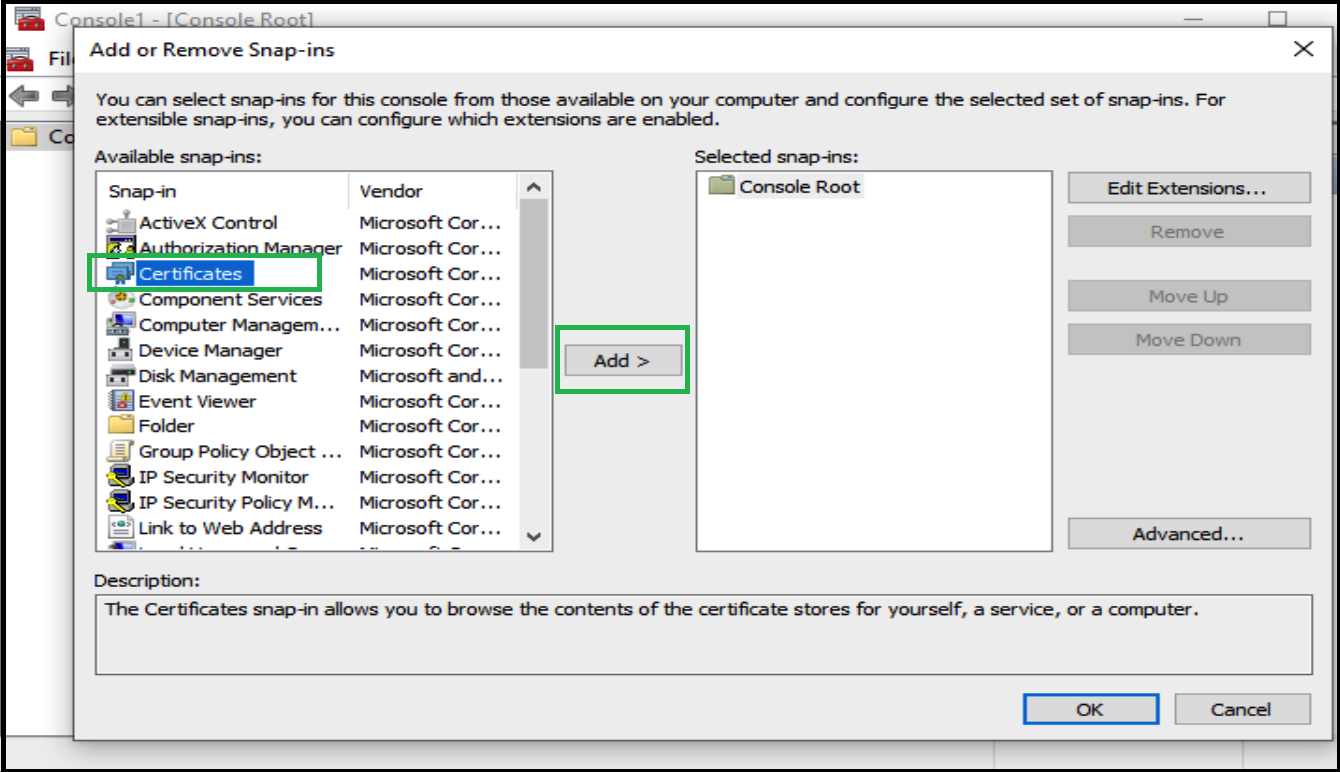
S/MIME encryption requires digital certificates issued by a trusted certificate authority. Both sender and recipient must exchange public keys before encrypted communication can occur.
Setting Up S/MIME
Before sending encrypted messages:
- Obtain a digital certificate.
- Install the certificate on your computer.
- Configure Outlook to use the certificate.
In Outlook:
- Go to File.
- Select Options.
- Choose Trust Center.
- Click Trust Center Settings.
- Select Email Security.
- Choose your certificate under encrypted email settings.
Sending an S/MIME Encrypted Message
- Compose a new email.
- Go to the Options tab.
- Select “Encrypt using S/MIME.”
- Send the message.
S/MIME provides high-level security but requires careful setup and certificate management.
How to Encrypt Email in Outlook Web App
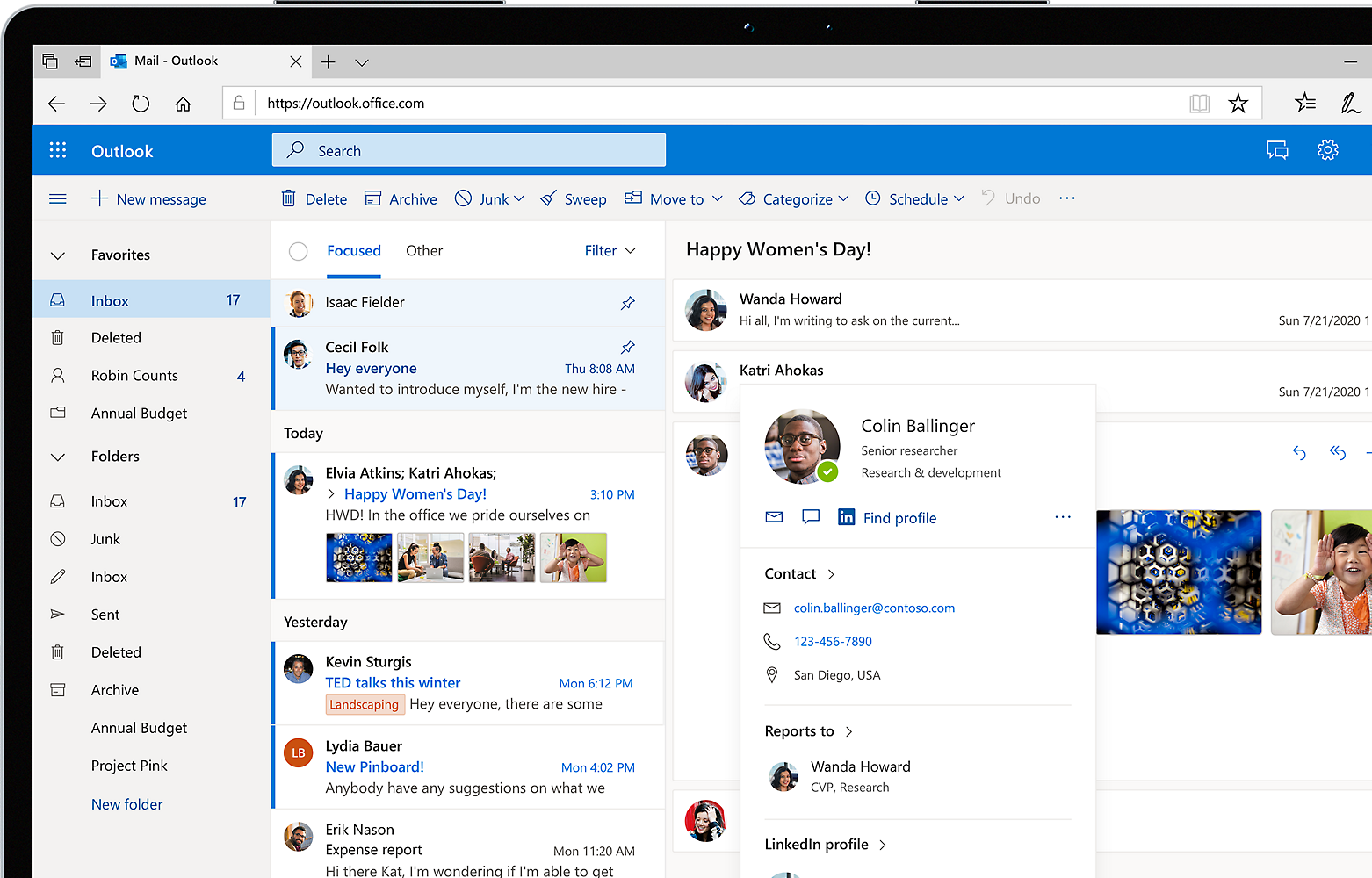
Outlook Web App offers encryption features similar to desktop versions for Microsoft 365 users.
Steps to Encrypt in Outlook Web
- Log into Outlook Web.
- Click New Message.
- Select the Encrypt button in the toolbar.
- Choose your encryption preference.
- Send your message.
Encryption works seamlessly across web and desktop platforms when using Microsoft 365 accounts.
Comparing Encryption Methods in Outlook
Understanding differences between encryption methods helps determine which is appropriate for your needs.
| Feature | Microsoft 365 Encryption | S/MIME |
|---|---|---|
| Ease of Use | Very simple | Moderate to complex |
| Requires Certificate | No | Yes |
| Works with External Recipients | Yes | Only if they have certificate |
| Enterprise Policy Support | Yes | Yes |
| Setup Time | Minimal | Longer |
For most users, Microsoft 365 encryption provides adequate security with less administrative burden. S/MIME is ideal for organizations requiring strict certificate-based validation.
Best Practices for Secure Email Communication

Encryption alone does not guarantee total protection. It must be combined with other security measures.
Use Strong Authentication
Enable multi-factor authentication to prevent unauthorized account access.
Verify Recipient Addresses
Encryption does not prevent sending information to the wrong person. Always double-check email addresses before sending confidential material.
Protect Attachments Separately
In addition to encrypting the message, consider password-protecting sensitive files.
Keep Software Updated
Ensure Outlook and your operating system remain updated with security patches.
Troubleshooting Common Encryption Issues
Users sometimes encounter challenges when encrypting emails. Here are common problems and solutions.
Recipient Cannot Open Encrypted Email
Possible causes:
- Recipient lacks compatible encryption support.
- Certificate mismatch (for S/MIME).
- Browser compatibility issues.
Solution:
- Confirm recipient authentication method.
- Resend using alternative encryption setting if necessary.
Encrypt Button Missing
This may occur if:
- Your account type does not support encryption.
- Encryption features are disabled by an administrator.
Solution:
- Verify subscription type.
- Contact IT administrator.
Legal and Compliance Considerations
Many industries require encrypted communication to comply with regulations. Organizations handling financial records, medical information, or confidential client data may be legally obligated to encrypt email communications. Implementing Outlook encryption helps satisfy these compliance standards while protecting brand reputation.
Read: 3I/ATLAS Paul Craggs Astrophotography Techniques Clearly
FAQs
1. Can I encrypt emails in Outlook without Microsoft 365?
Encryption options may be limited. Full built-in encryption features require a Microsoft 365 subscription.
2. Does encryption protect attachments?
Yes, when properly enabled, encryption protects both the message body and attachments.
3. Can Gmail users open encrypted Outlook emails?
Yes, they can authenticate using a one-time passcode or their email provider credentials.
4. Is S/MIME more secure than Microsoft 365 encryption?
S/MIME uses certificate-based encryption and may offer stricter authentication, but both are secure when configured properly.
5. Can I remove encryption after sending an email?
No, once sent, encryption settings cannot be modified.